
ASUS Router WiFi Password Change – Step-by-Step Guide
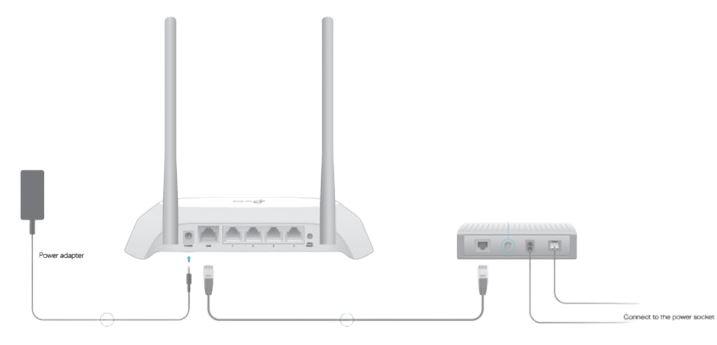
ASUS Router WiFi Password Change – Complete Guide
Securing your home or office WiFi network is essential, and performing an ASUS router WiFi password change is one of the simplest ways to protect your connection. Regular password updates prevent unauthorized access, improve performance, and ensure your devices stay connected safely.
This guide provides clear steps for changing your WiFi password on any ASUS router.
Why You Should Change Your WiFi Password
Updating your ASUS WiFi password regularly helps:
- Prevent unauthorized access to your network
- Improve internet speed by limiting unknown devices
- Secure personal data and connected devices
- Replace weak or outdated passwords
A secure WiFi network ensures reliable connectivity and privacy for all users.
What You Need Before Changing Your WiFi Password
Before starting, make sure you have:
- Access to your ASUS router
- A device connected to the router (PC, laptop, or smartphone)
- Router login credentials (username and password)
Step-by-Step: ASUS Router WiFi Password Change
Step 1: Connect to Your ASUS Router
Ensure your device is connected to your router via WiFi or Ethernet for a stable connection.
Step 2: Access Router Settings
- Open a web browser
- Enter the router IP address (common default:
192.168.1.1or192.168.50.1) - Press Enter to open the login page
Step 3: Login to Router
- Enter your admin username and password
- If you haven’t changed it before, check the router label for default credentials
Step 4: Navigate to Wireless Settings
- Go to Wireless or WiFi Settings
- Find the section for SSID / Network Name and Password / WPA Key
Step 5: Change Your WiFi Password
- Enter a new strong password
- Use a combination of letters, numbers, and symbols for security
- Click Save or Apply to confirm the changes
Step 6: Reconnect Your Devices
After updating your password:
- All previously connected devices will be disconnected
- Reconnect each device using the new password
Tips for a Strong WiFi Password
- Minimum 8–12 characters
- Include uppercase and lowercase letters
- Add numbers and special characters
- Avoid using personal information
A strong password is critical for preventing unauthorized access and keeping your network safe.
Common Issues During ASUS Router WiFi Password Change
Cannot Access Router
- Check the IP address
- Make sure your device is connected to the router
Forgot Router Admin Password
- Use the reset button on the router to restore default login credentials
- Reconfigure your WiFi settings after reset
Devices Cannot Connect
- Make sure the new password is entered correctly
- Forget the old network on your devices and reconnect
How Often Should You Change Your WiFi Password?
- Every 3–6 months
- If multiple people have access to your network
- If you notice unknown devices connected
Regular updates help maintain security and optimal performance.
Final Thoughts
Performing an ASUS router WiFi password change is quick and essential for maintaining a secure and reliable network. By following this guide, you can protect your devices, improve connection performance, and control who uses your internet.
